Help center / Settings, privacy and troubleshooting
Settings, privacy and troubleshooting
Making the app yours, your data, and what to do when something misbehaves.
Settings
How do I change the colors or dark mode?
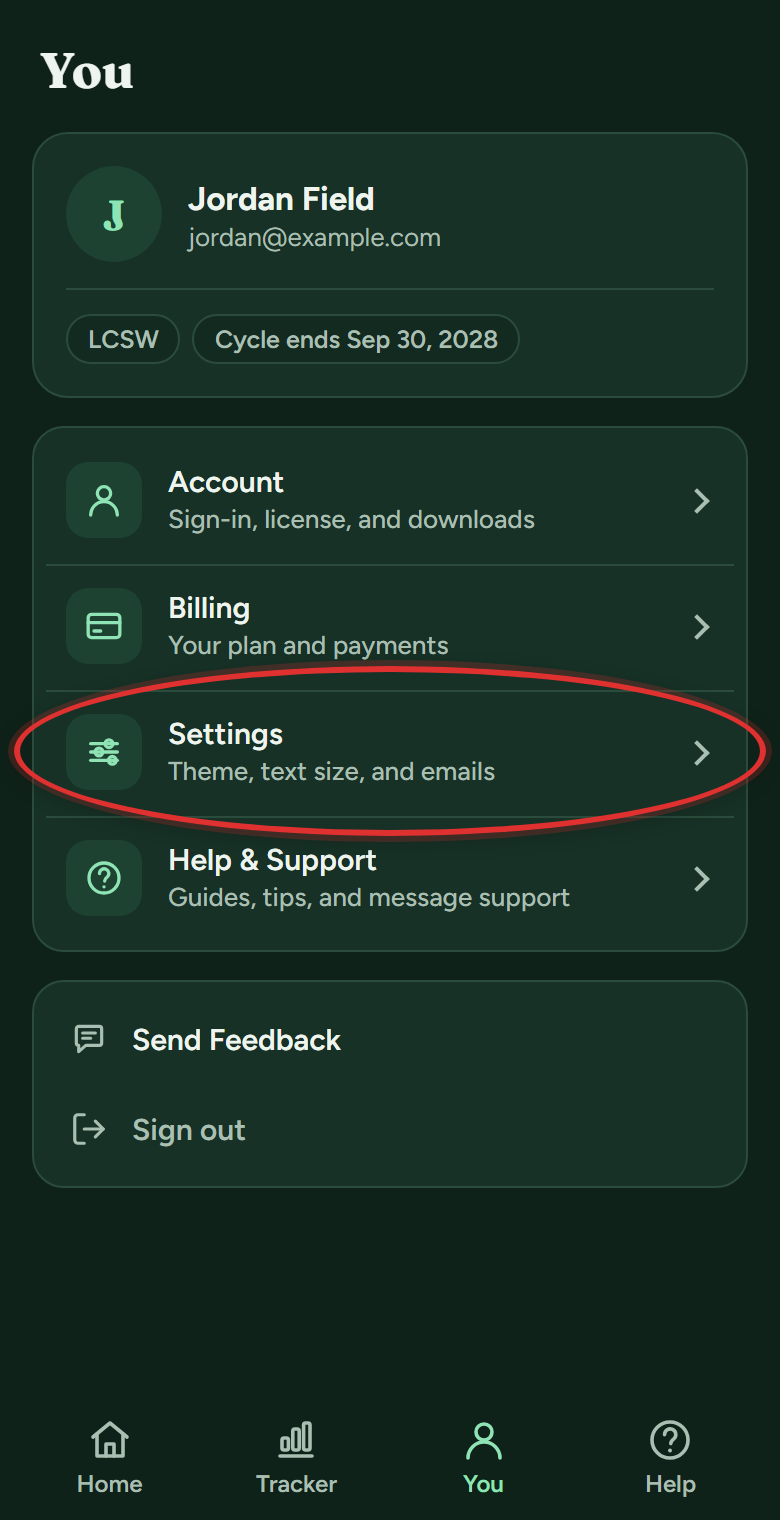
- Tap You in the bottom bar, then Settings.
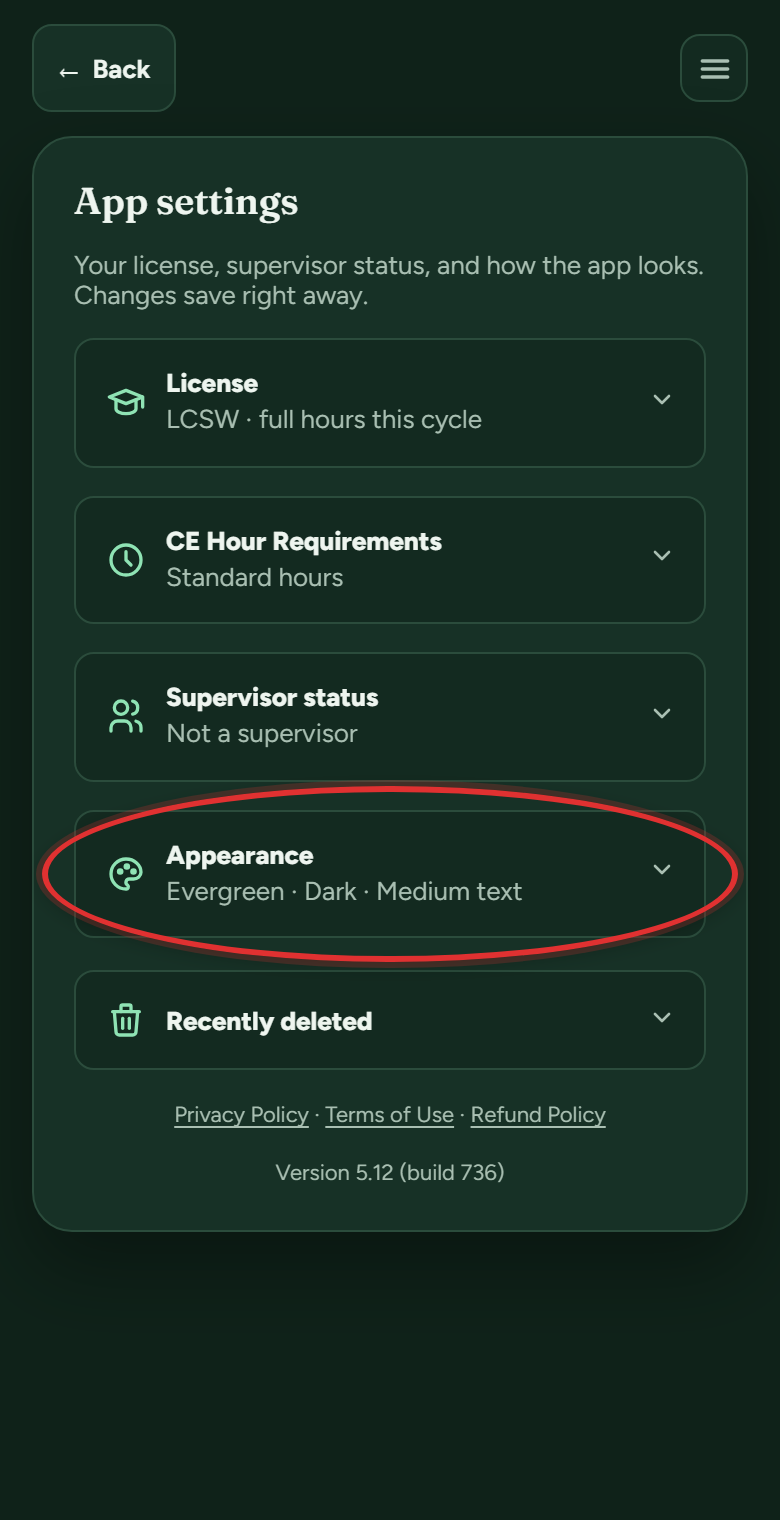
- Open Appearance.
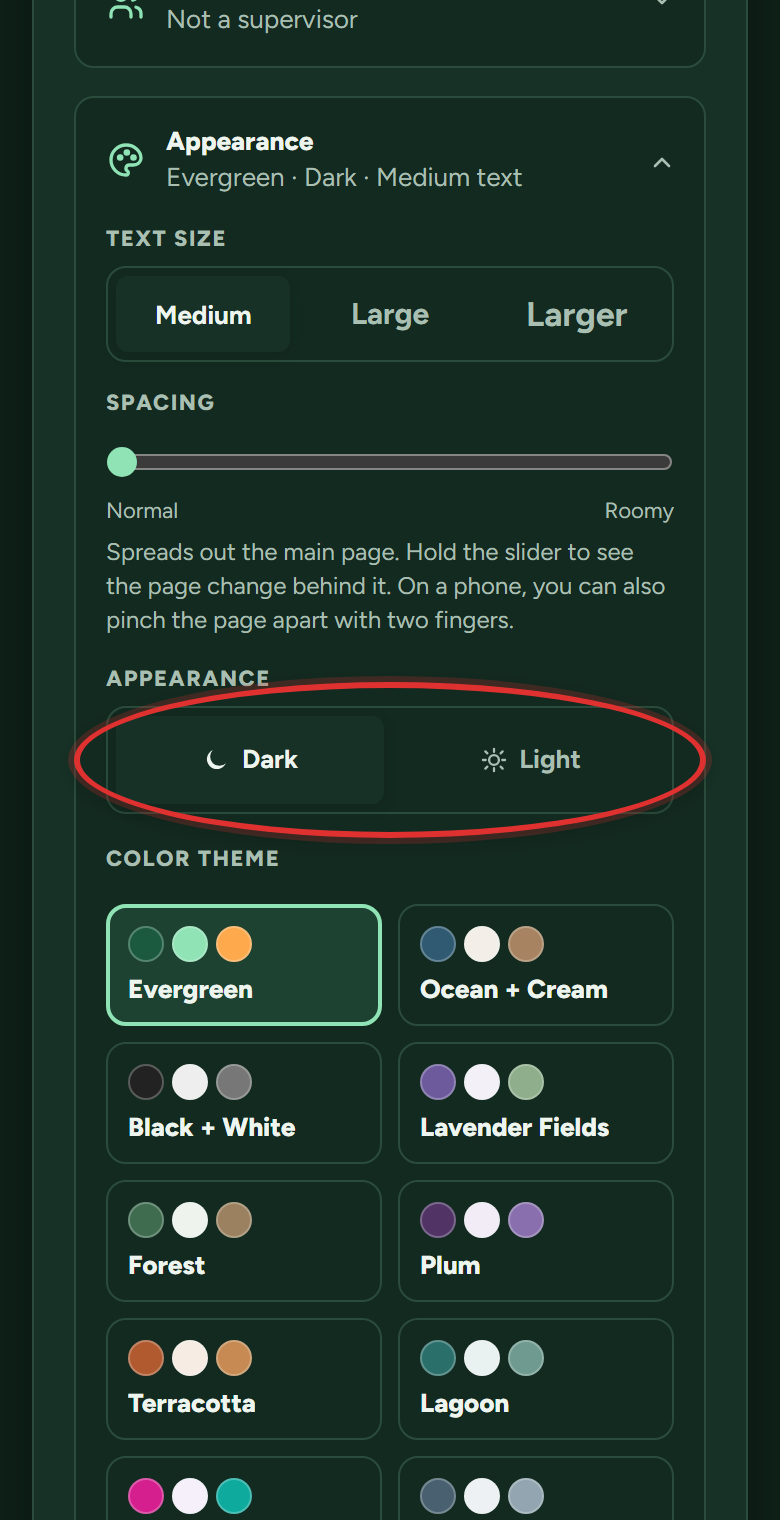
- Pick Dark or Light.
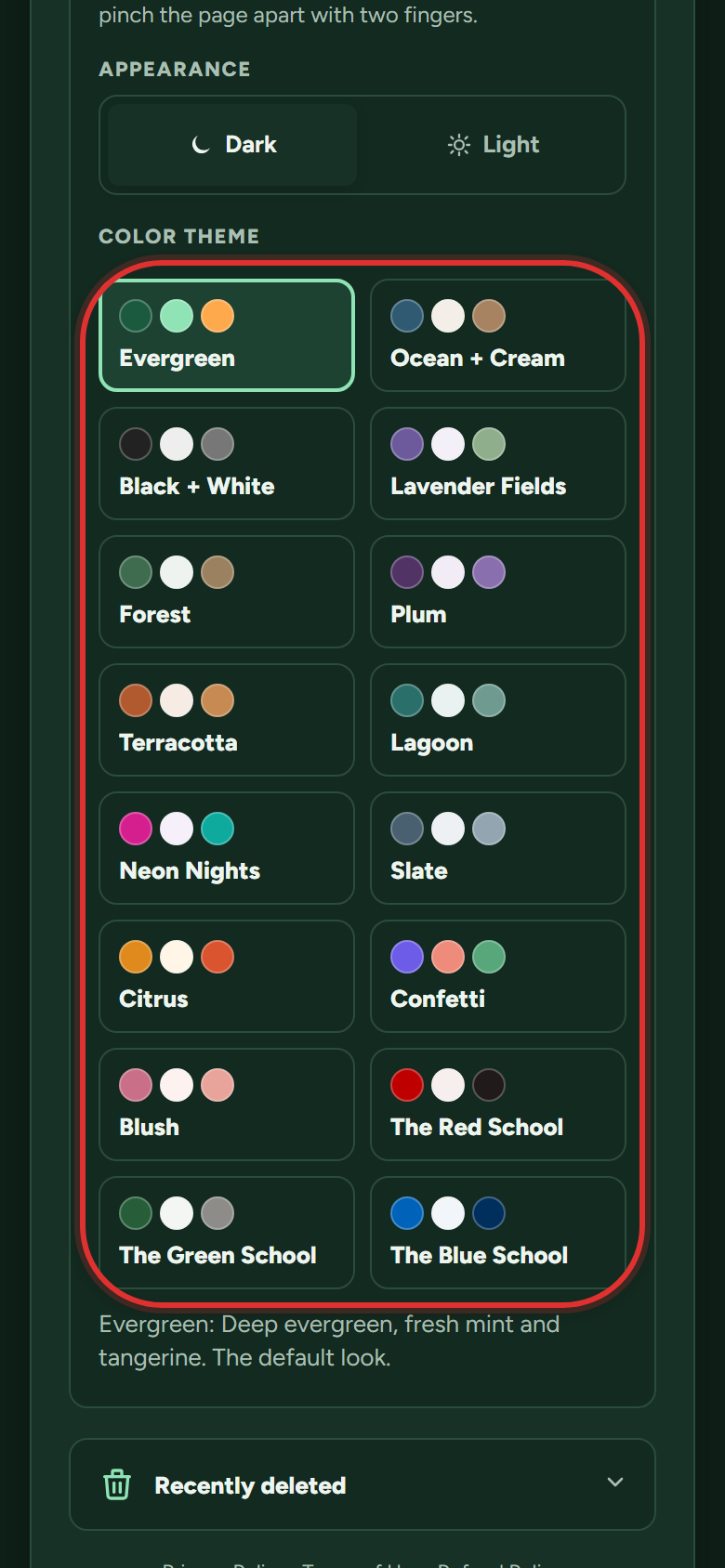
- Pick a color theme below it. 3 themes are free; Premium unlocks all 16, the university ones included. Changes save right away.
The text is too small (or everything feels cramped).
Two separate controls fix two different things:
- Tap You in the bottom bar, then Settings, and open Appearance.
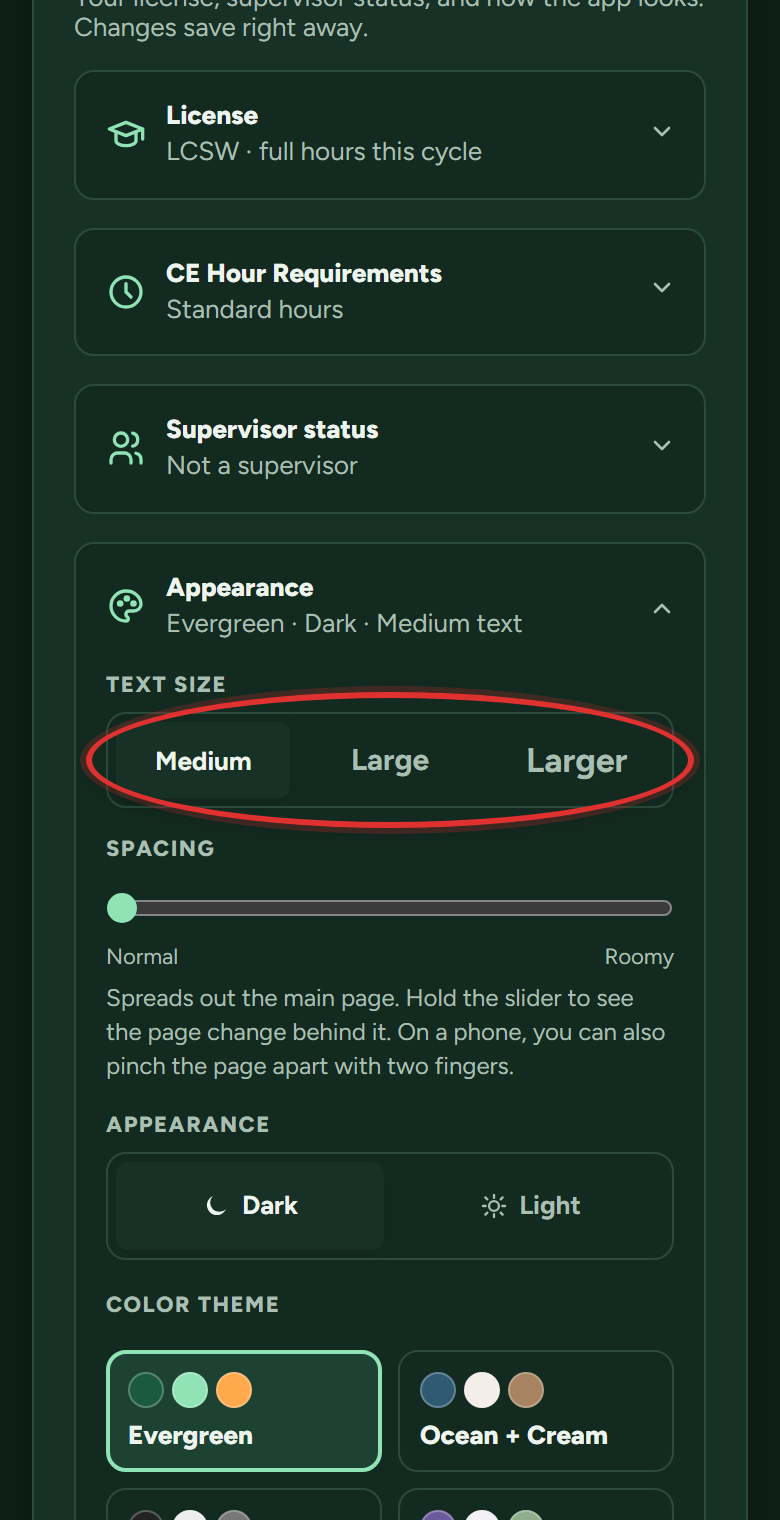
- TEXT SIZE at the top of the panel: Medium, Large or Larger. Everything in the app scales.
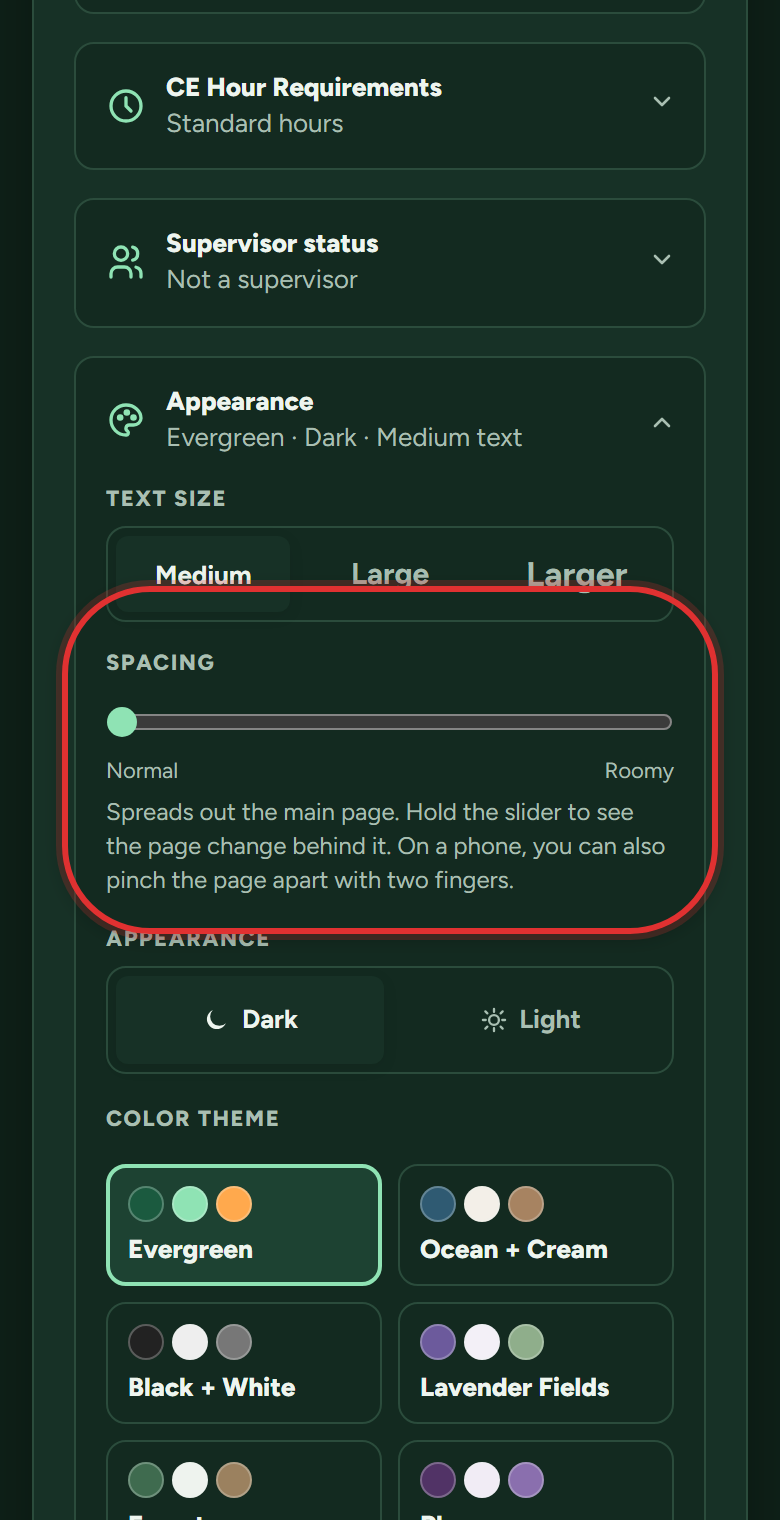
- SPACING right below it: the slider spreads the tracker out, from Normal to Roomy; hold it and the page shows the change live behind it. On a phone you can also pinch the main page apart with two fingers.
Which emails does the app send, and can I turn them off?
Account email (sign-in codes, payment receipts, the renewal reminder Utah requires) always sends. Everything optional has a switch:
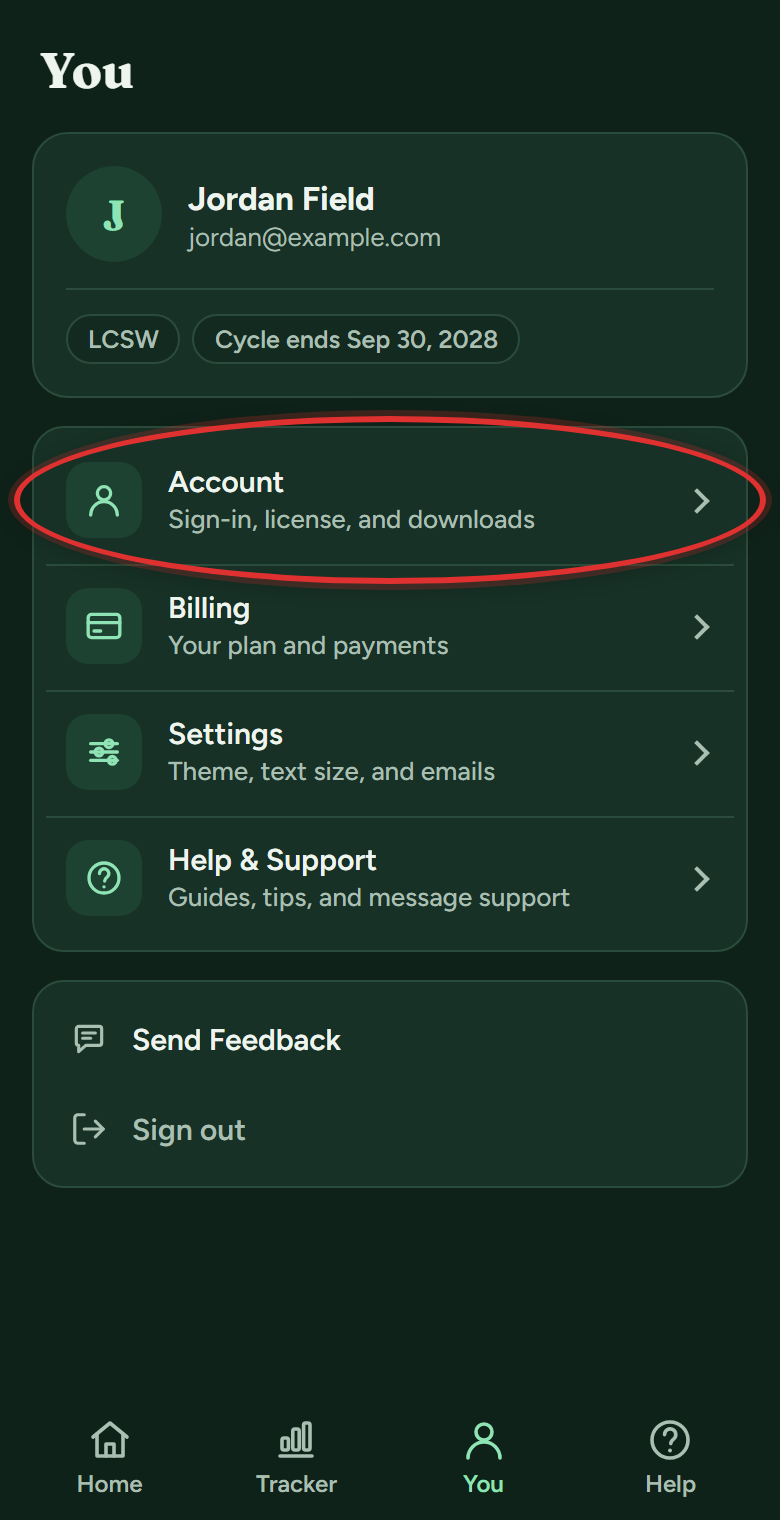
- Tap You in the bottom bar, then Account.
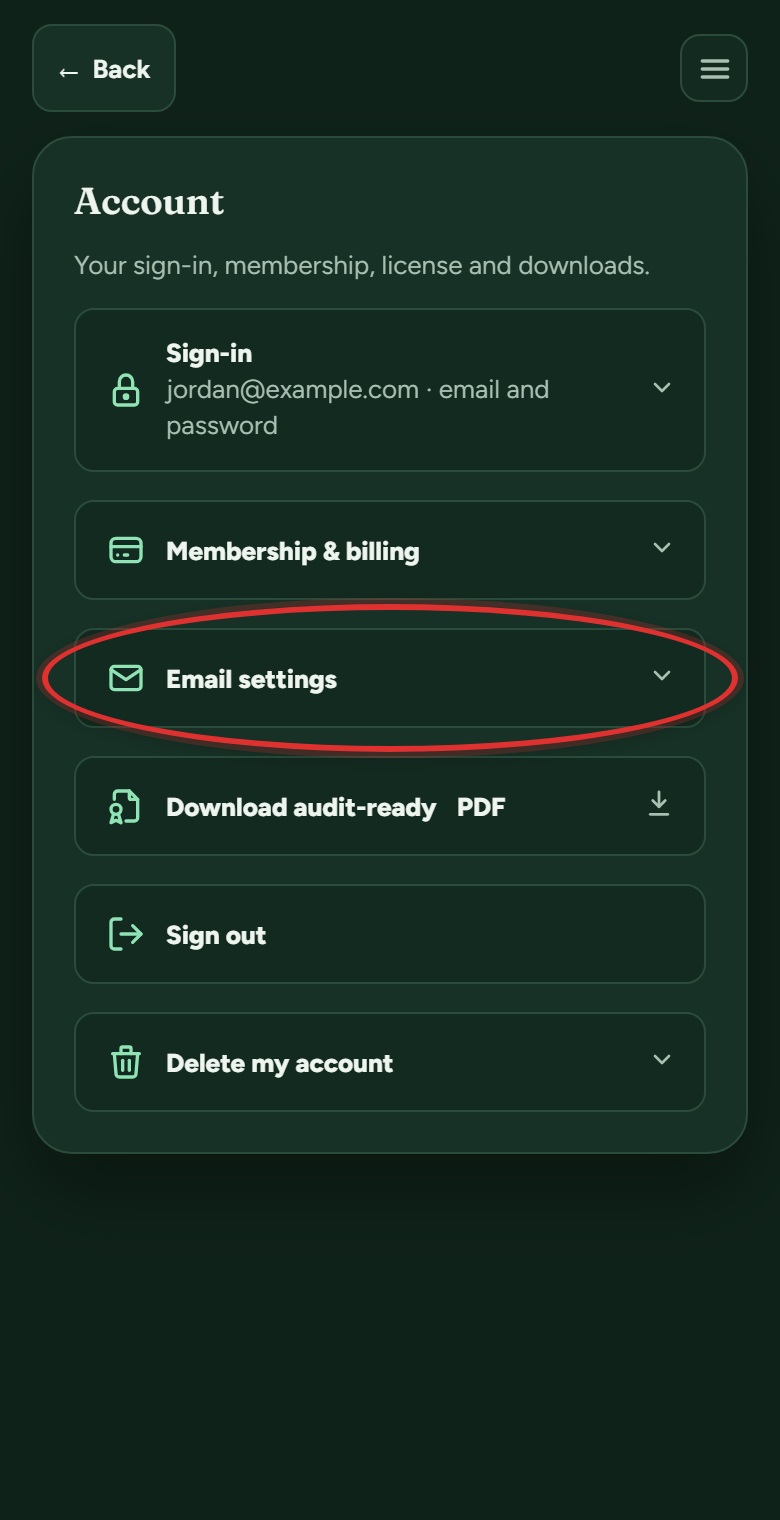
- Open Email settings.
- Flip the switches: Plan reminders and Updates on things I send.
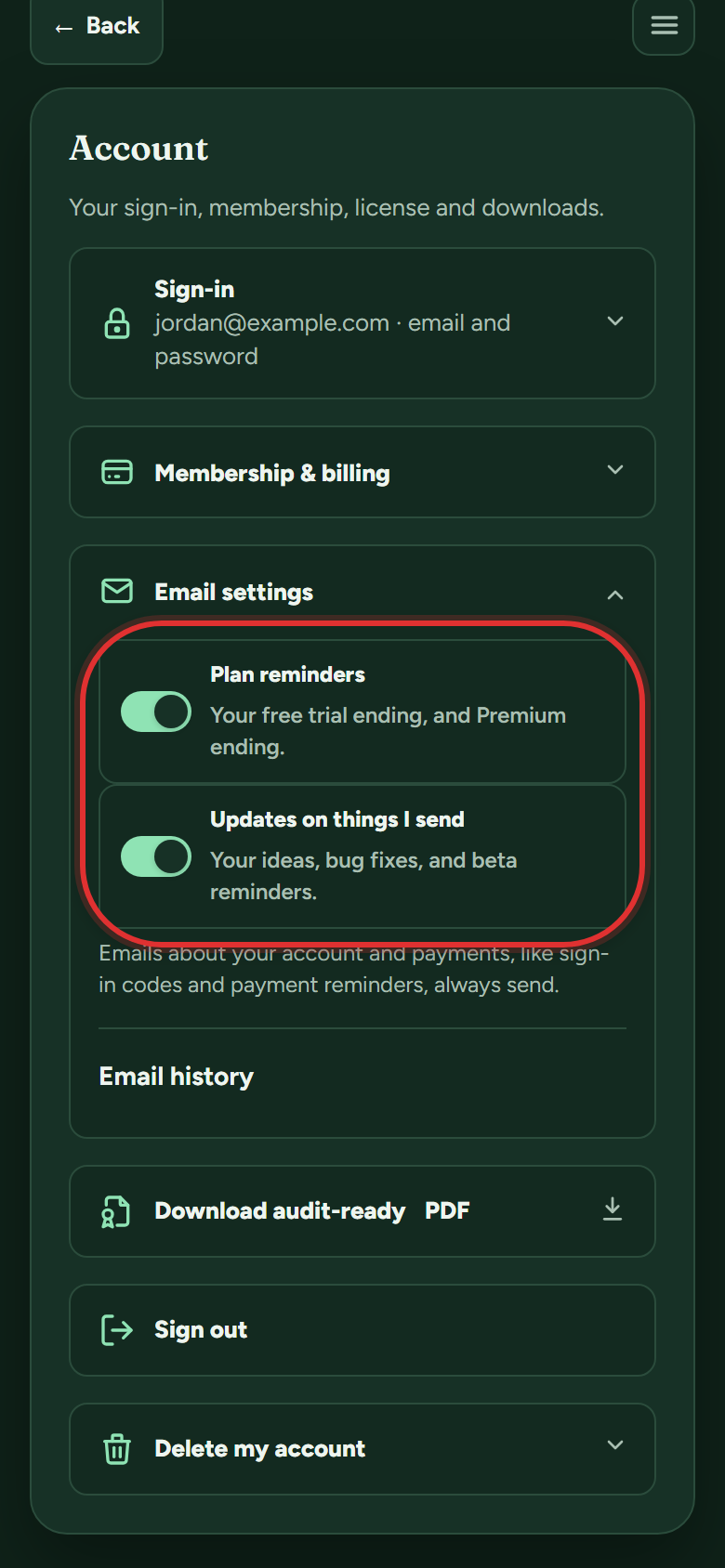 Every optional email also carries an unsubscribe link at the bottom, and Email history right there shows what was sent to you, with one-tap resends.
Privacy and your data
Is my information private?
Yes. Your data is encrypted, it's never sold or shared, and there are no ads. Only you can see your trainings, certificates and notes.
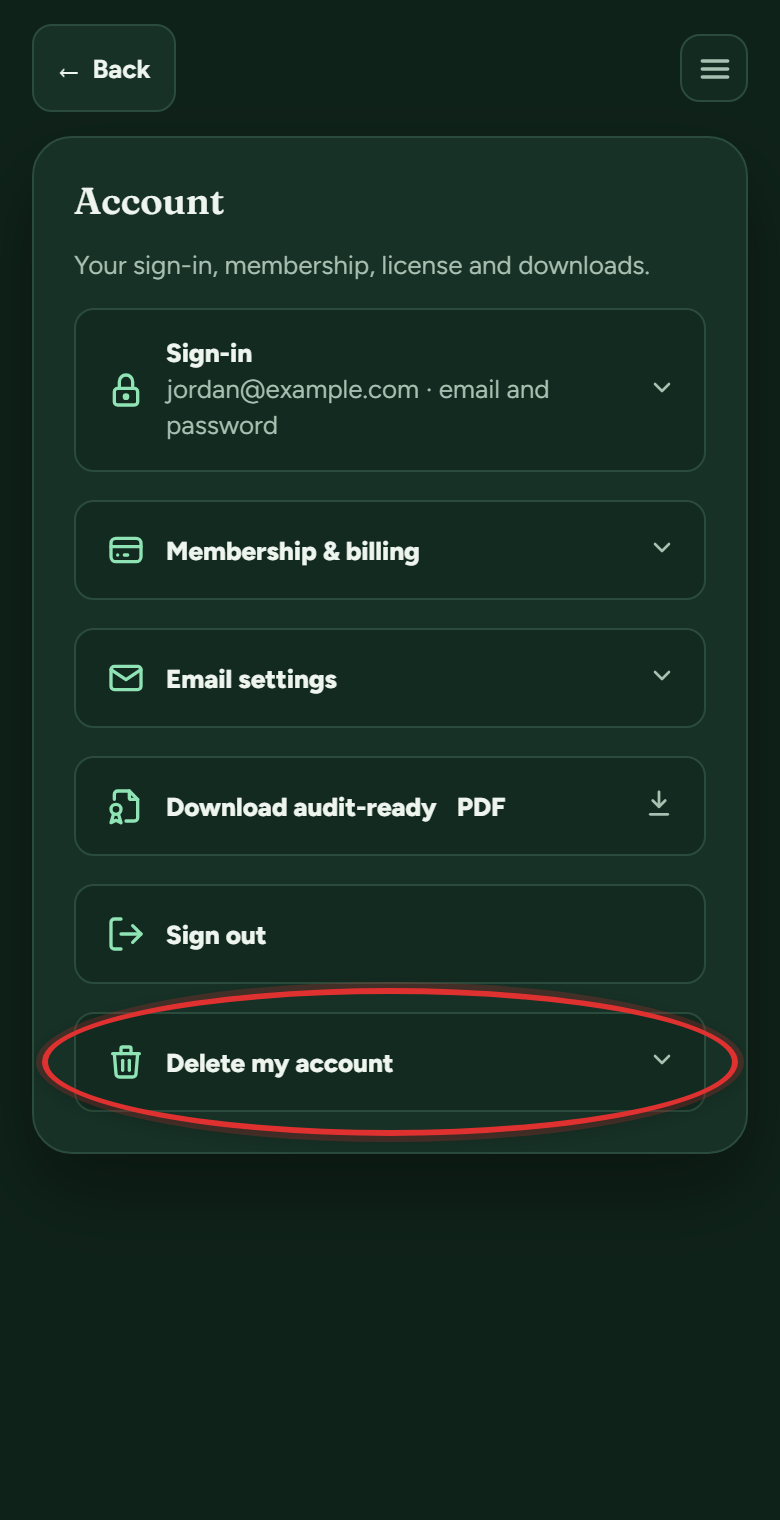
It stays yours, too: you can download everything or delete your account whenever you want, and deleting removes your trainings, certificates and settings for good. (Steps in "How do I delete my account?") Details in the Privacy Policy.
Who can see my trainings?
You. Your data is encrypted, never sold, and there are no ads. Support can only see your log if you generate a support code and hand it over, and that access ends within 24 hours or whenever you end it.
What is a support code?
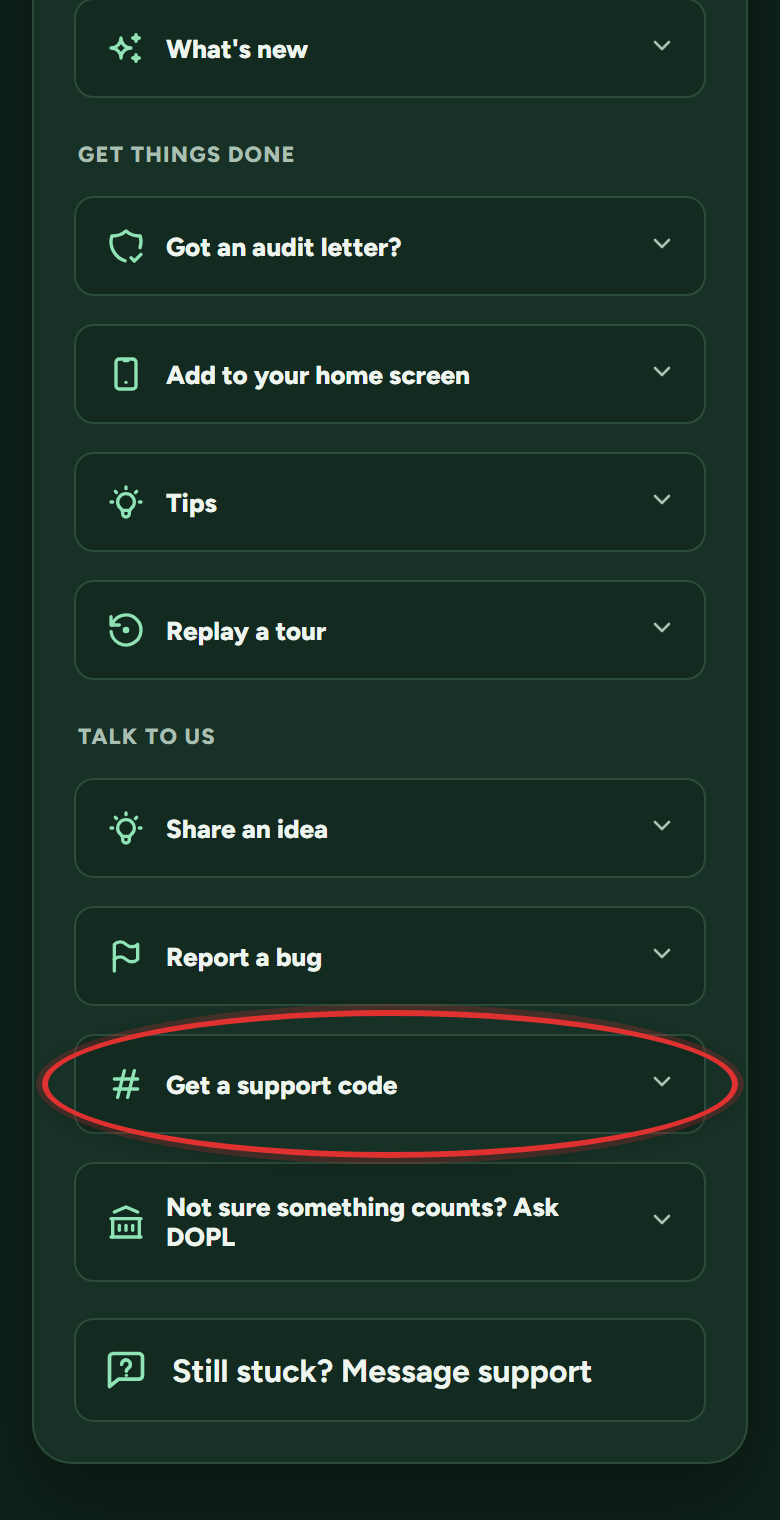
Your training log is private, even from support. If support asks to look while troubleshooting with you:
- Tap Help in the bottom bar (on a computer, Help & Support in the left menu), then Get a support code.
- Choose View only, or View and fix if you want support to correct entries for you.
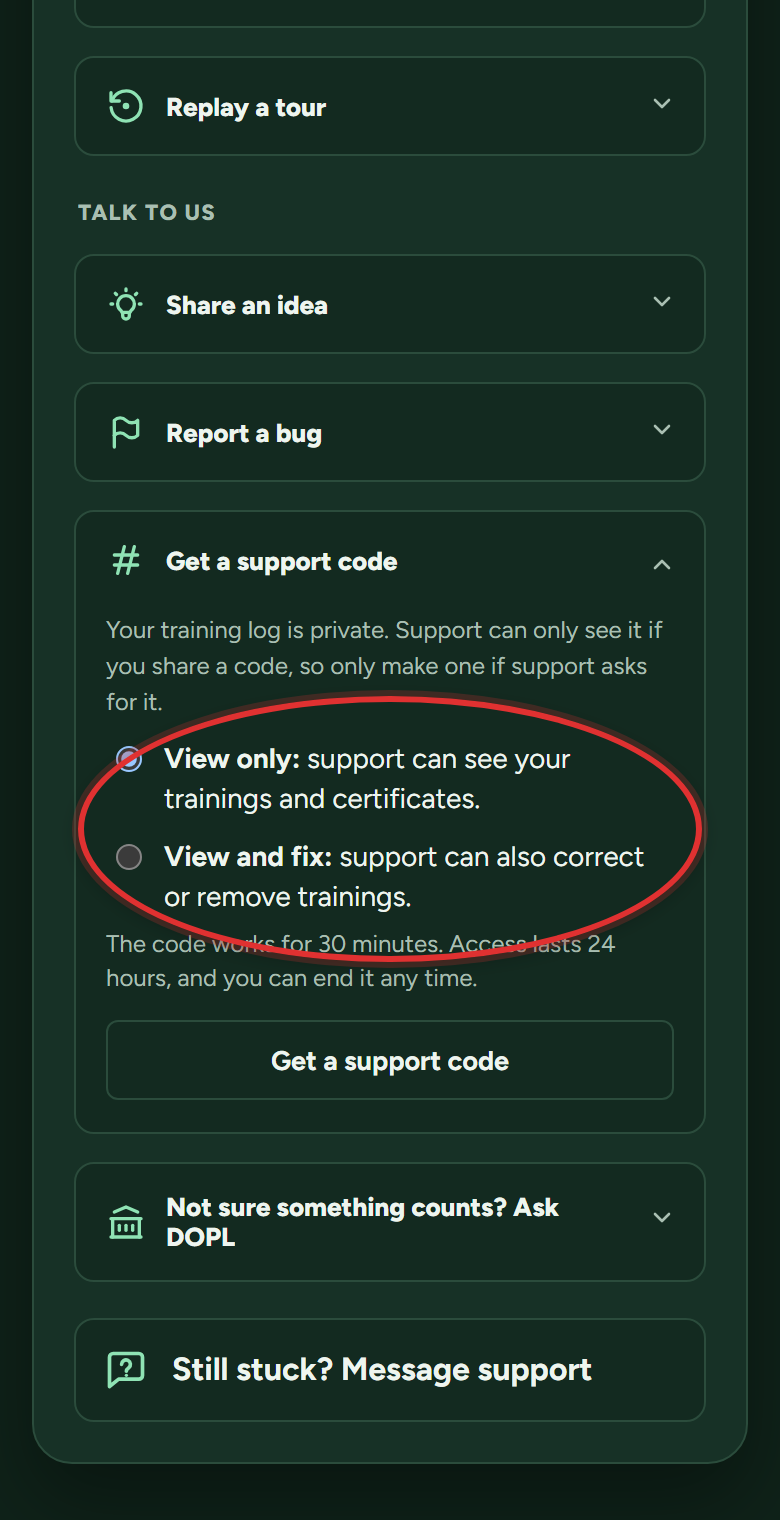
- Tap Get a support code and share the 6 digits with support.
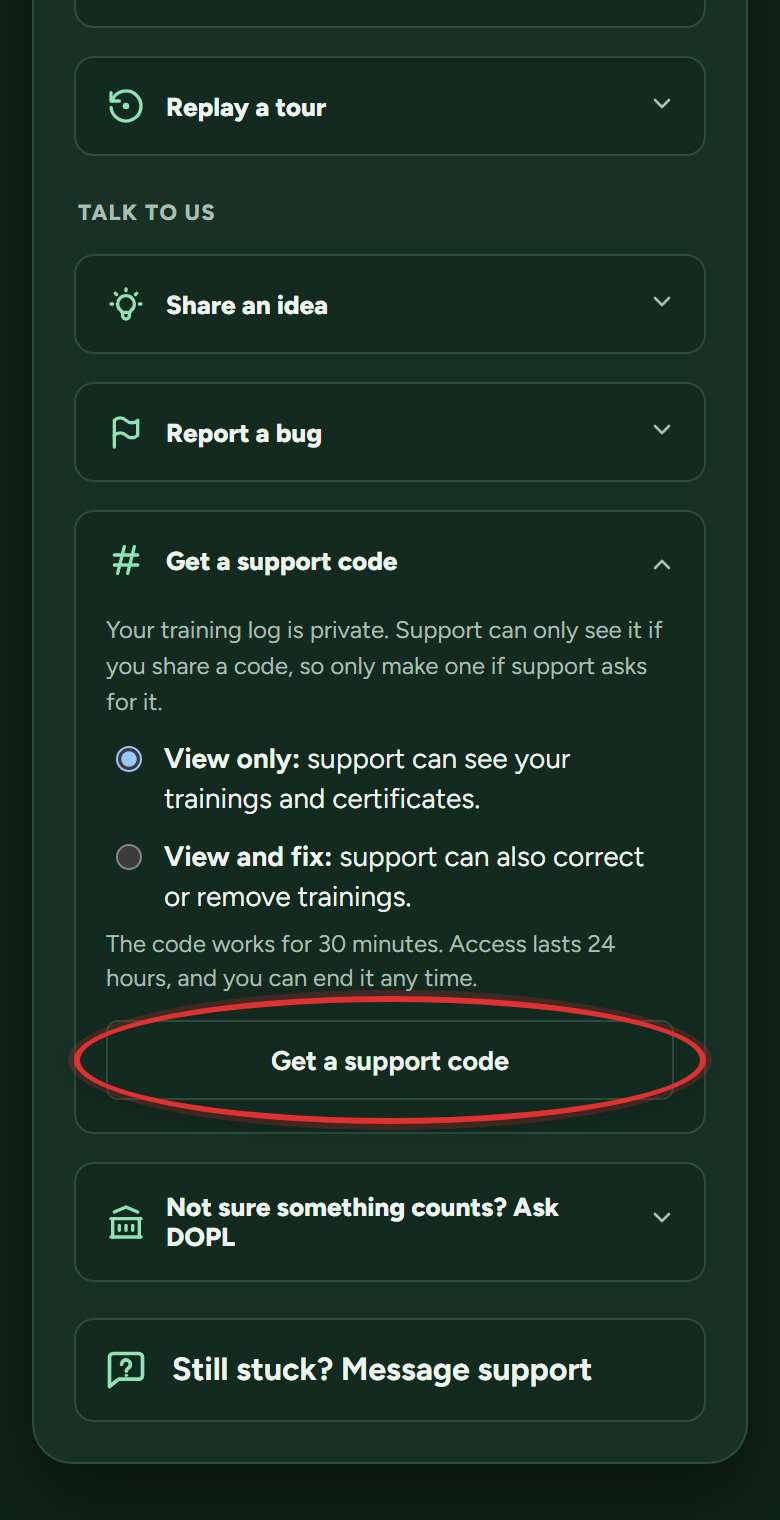 The code works once, within 30 minutes. The access ends by itself within 24 hours, and an End button appears so you can cut it off sooner. Only make one when support asks.
How do I delete my account?
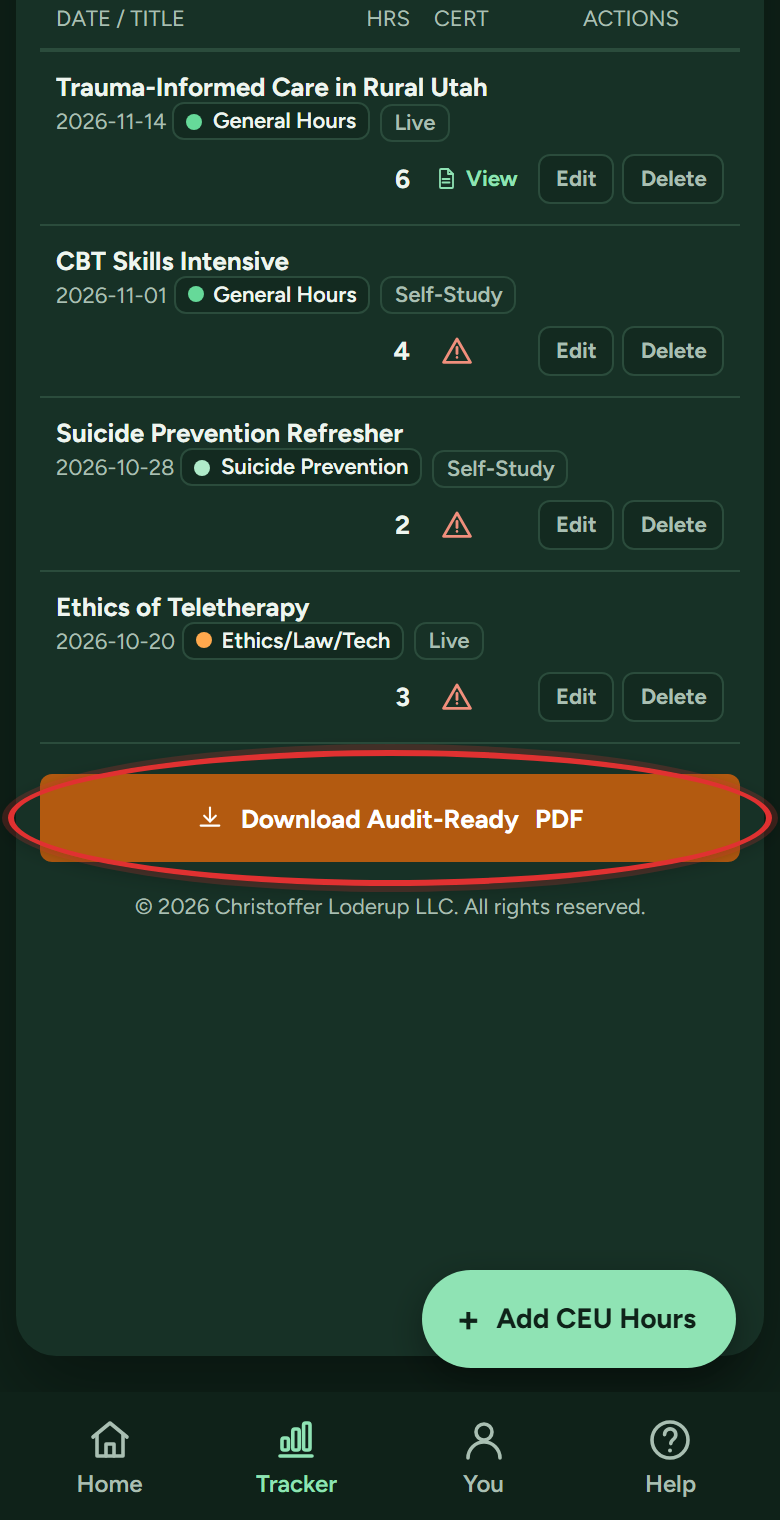
- First download anything you want to keep: certificates from the Training Log, or the audit-ready PDF for each cycle (the button at the bottom of My Tracker).
- Tap You in the bottom bar, then Account.
- Open Delete my account at the bottom and confirm. It permanently removes your sign-in, trainings, certificates and settings.
Troubleshooting
The app will not load or looks stale.
Try these in order:
- Refresh the page.
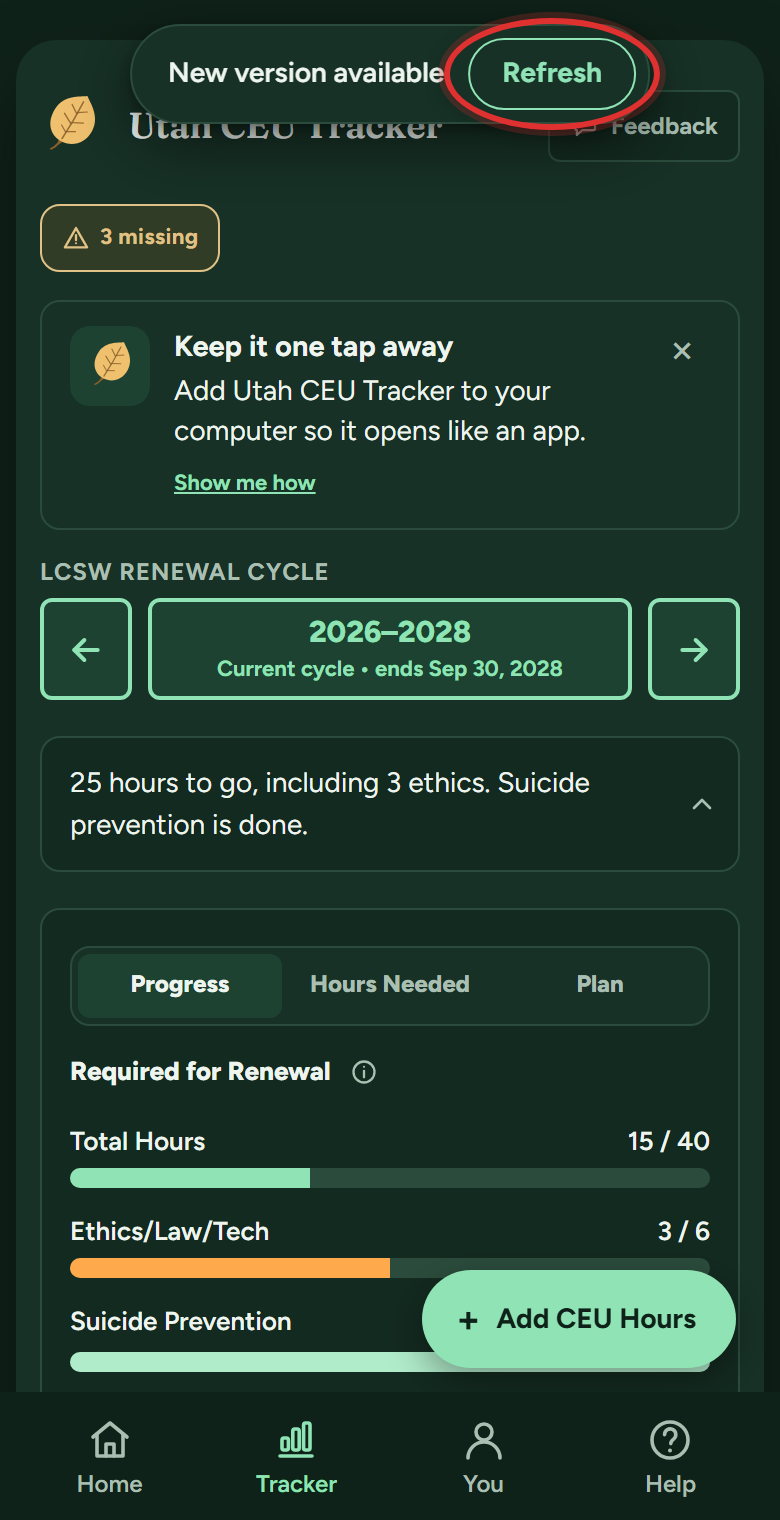
- If a New version available bar shows at the top, tap Refresh on it.
- Opened from the icon on your phone? Close the app fully and reopen it.
- Still stuck? Email support@utahceutracker.com with what the screen shows (a screenshot helps).
My numbers look wrong.
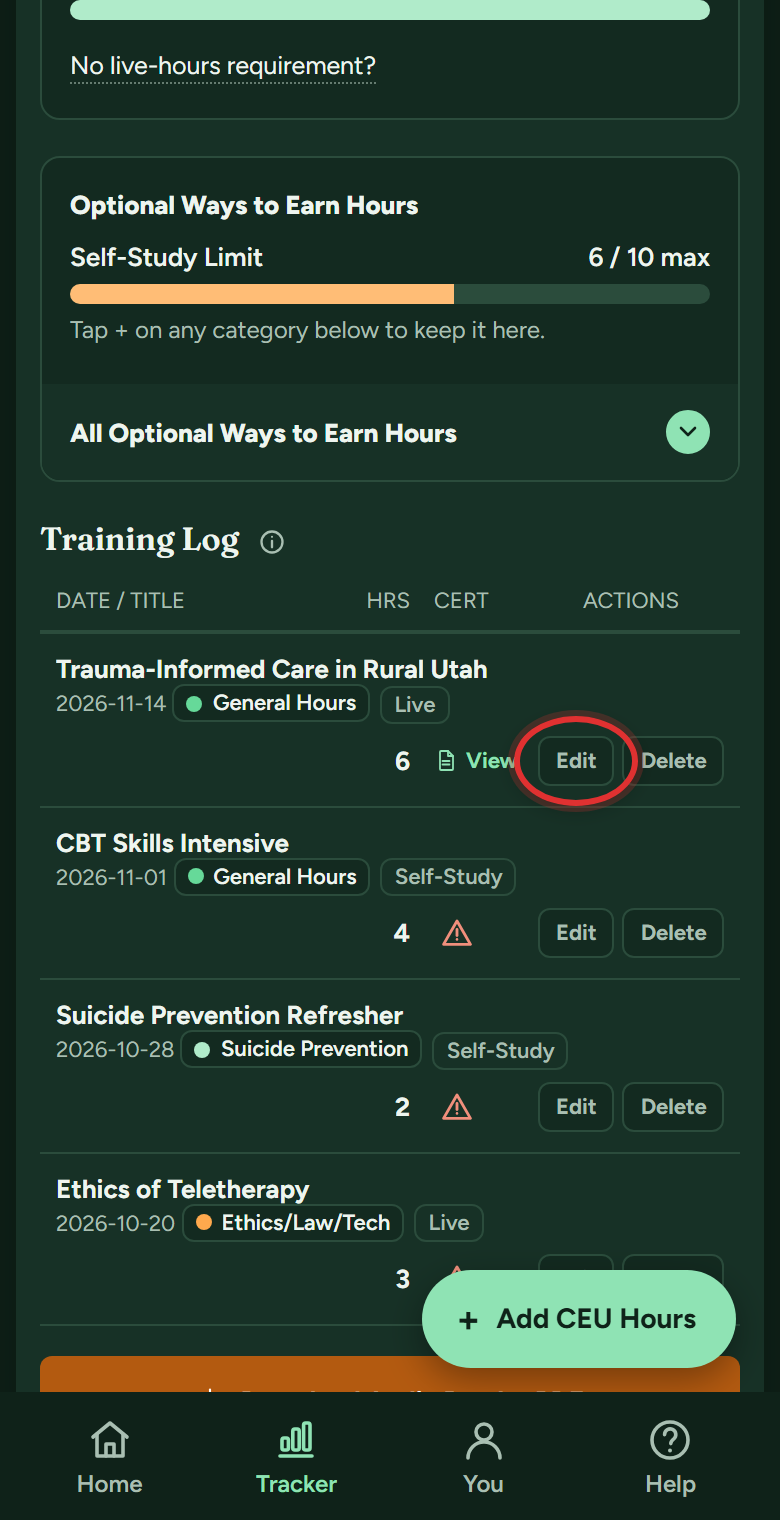
Totals are always computed from your Training Log, so a wrong total means an entry is off, usually a date that landed in a different cycle or hours split oddly:
- On My Tracker, scroll down to your Training Log and look for the entry that seems off.
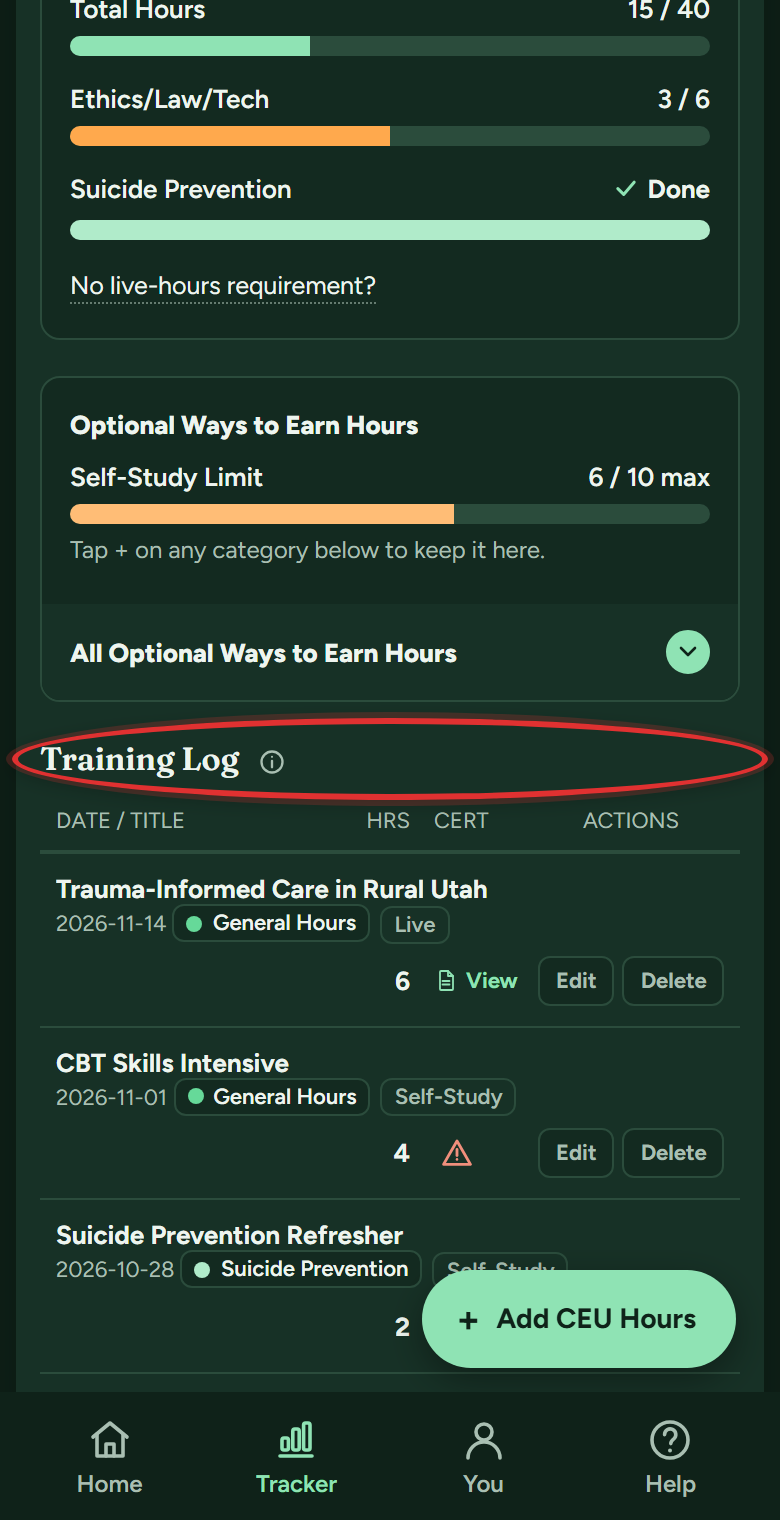
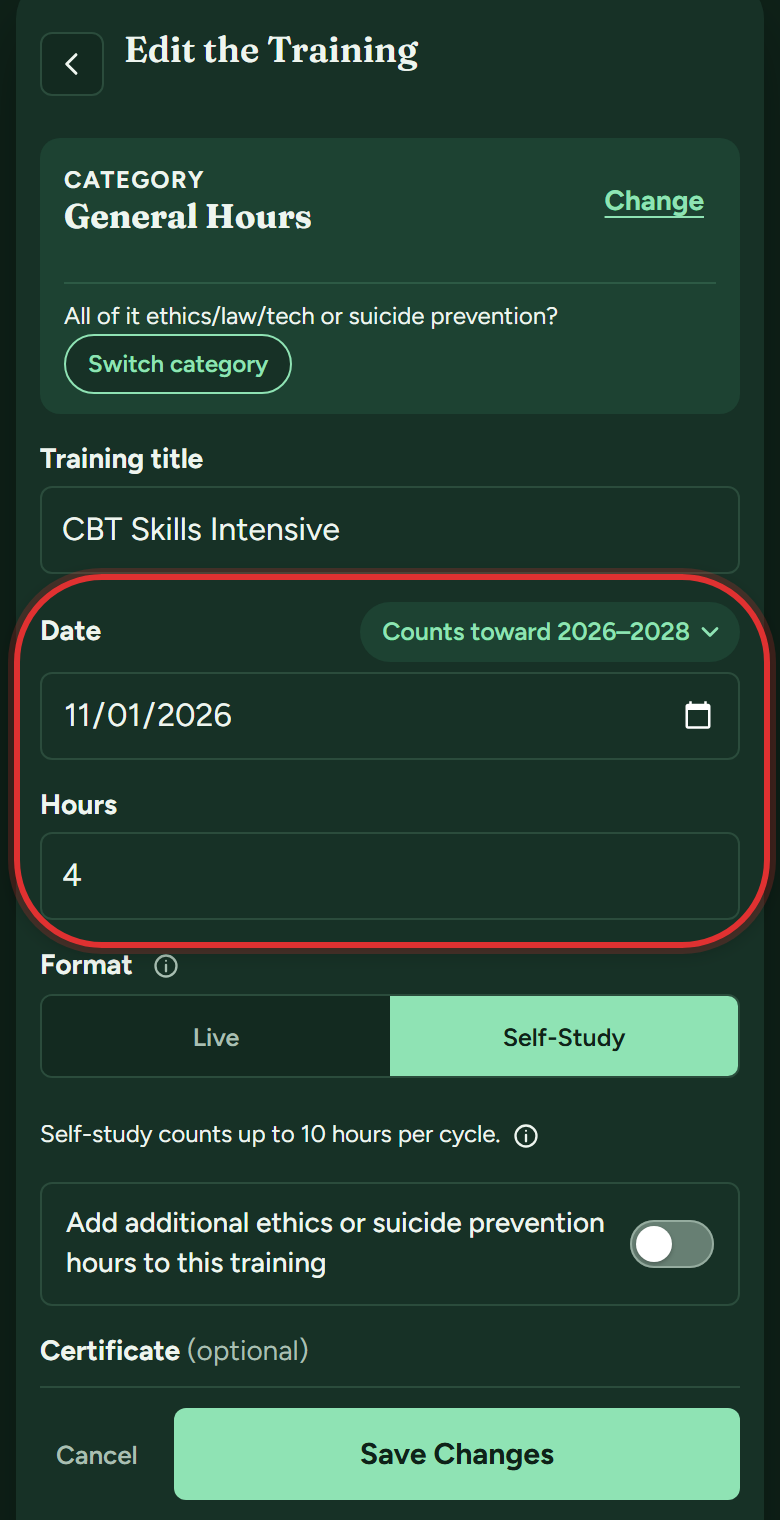
- Tap Edit on it.
- Check its date, hours and category, fix anything wrong, and tap Save Changes.
If it still disagrees with you, message support; that is exactly the kind of thing support wants to hear about.
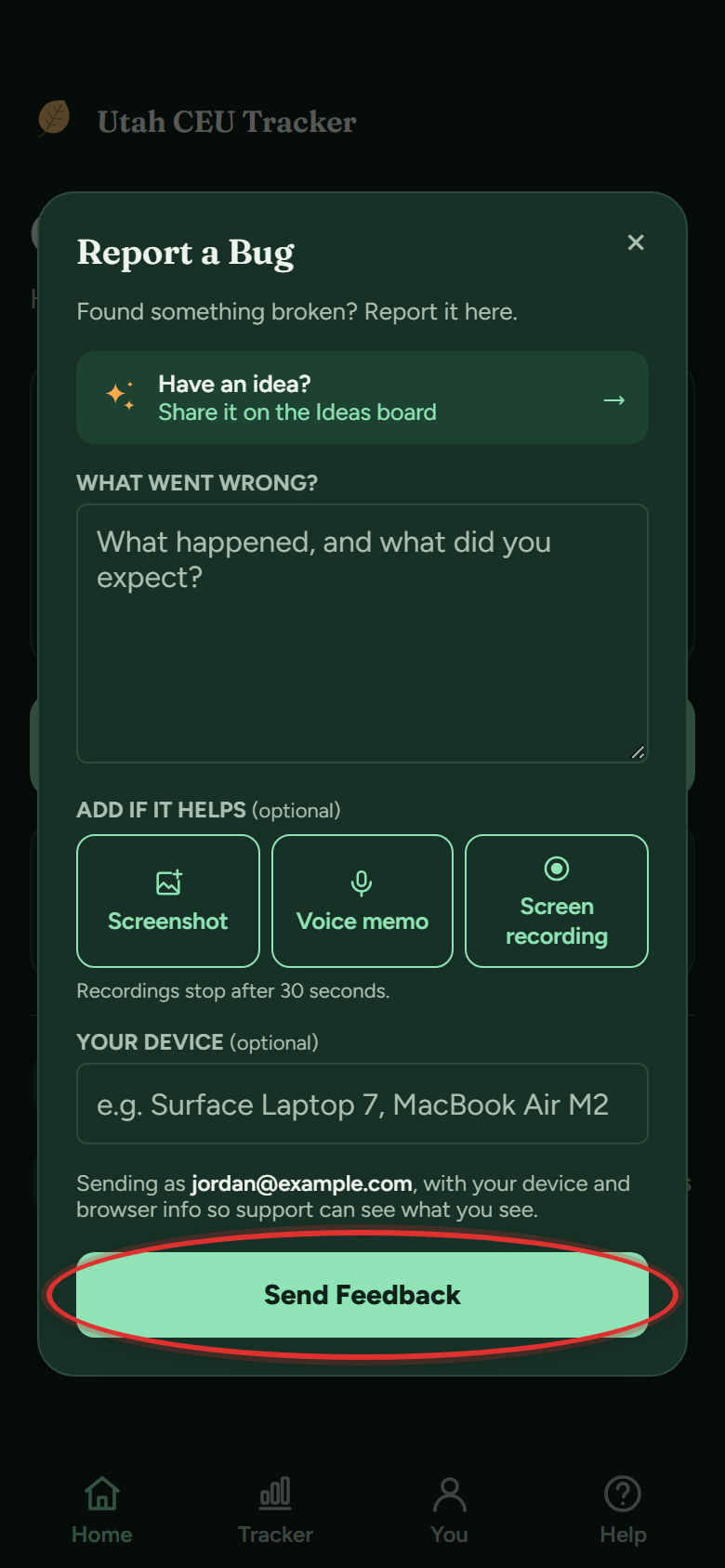
I found a bug.
Thank you, genuinely. Bugs get fixed fast, especially in early access:
- Open the menu (You in the bottom bar; on a computer the left menu) and tap Send Feedback at the bottom.
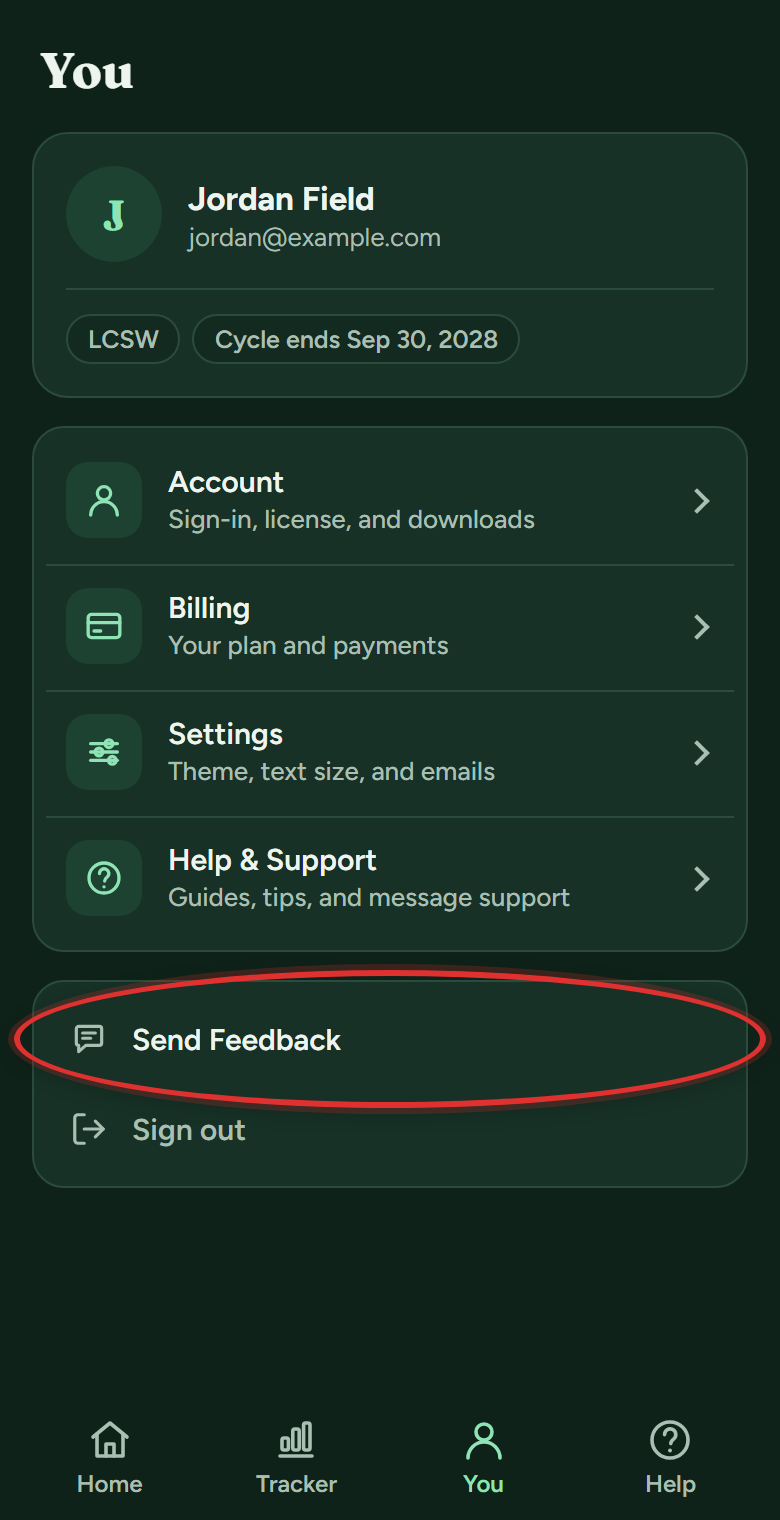
- Describe what happened and attach a screenshot, voice memo or screen recording if you can; it helps enormously.
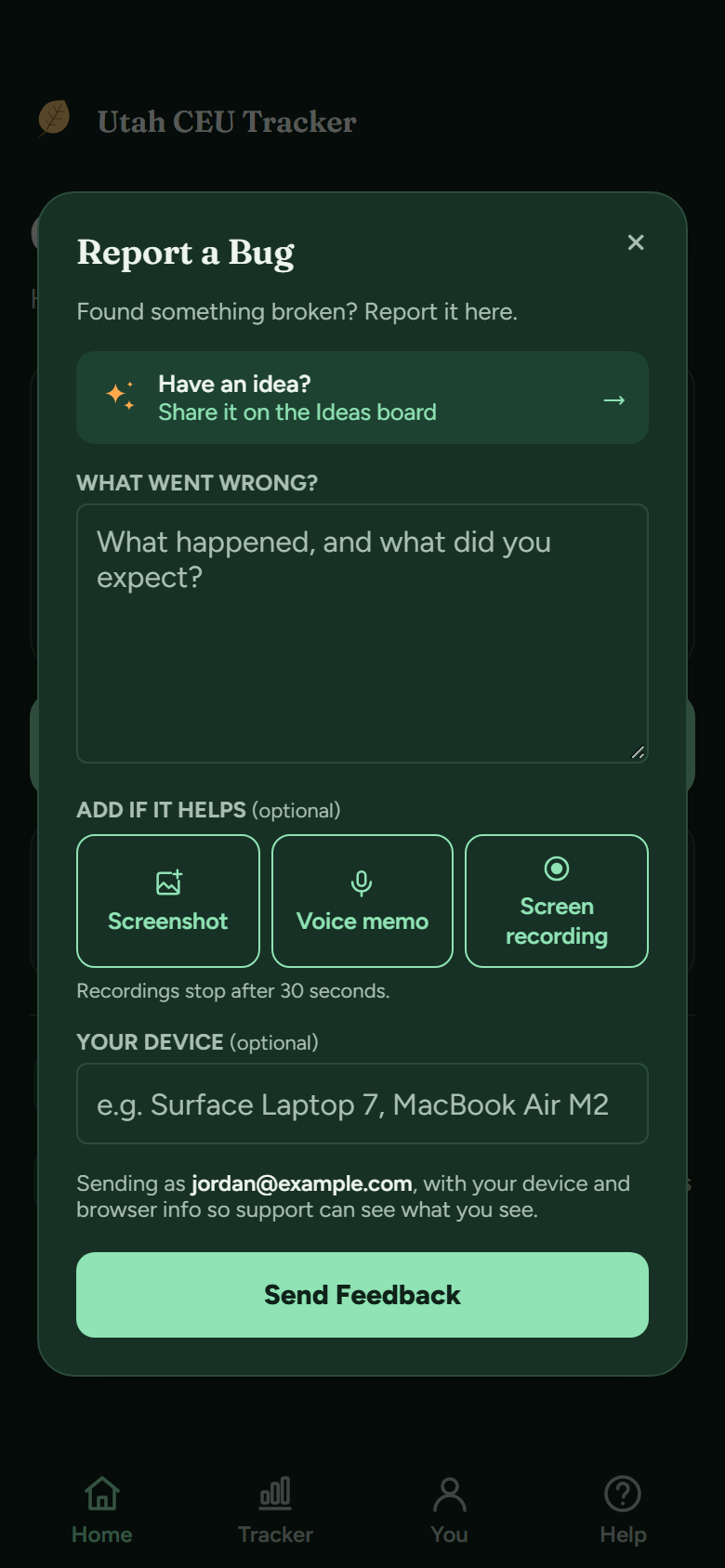
- Tap Send Feedback. You'll hear back, and during early access each real bug that gets fixed earns you a $2 credit.
How do I reach a person?
Every message is answered by a person:
- Tap Help in the bottom bar (on a computer, Help & Support in the left menu).
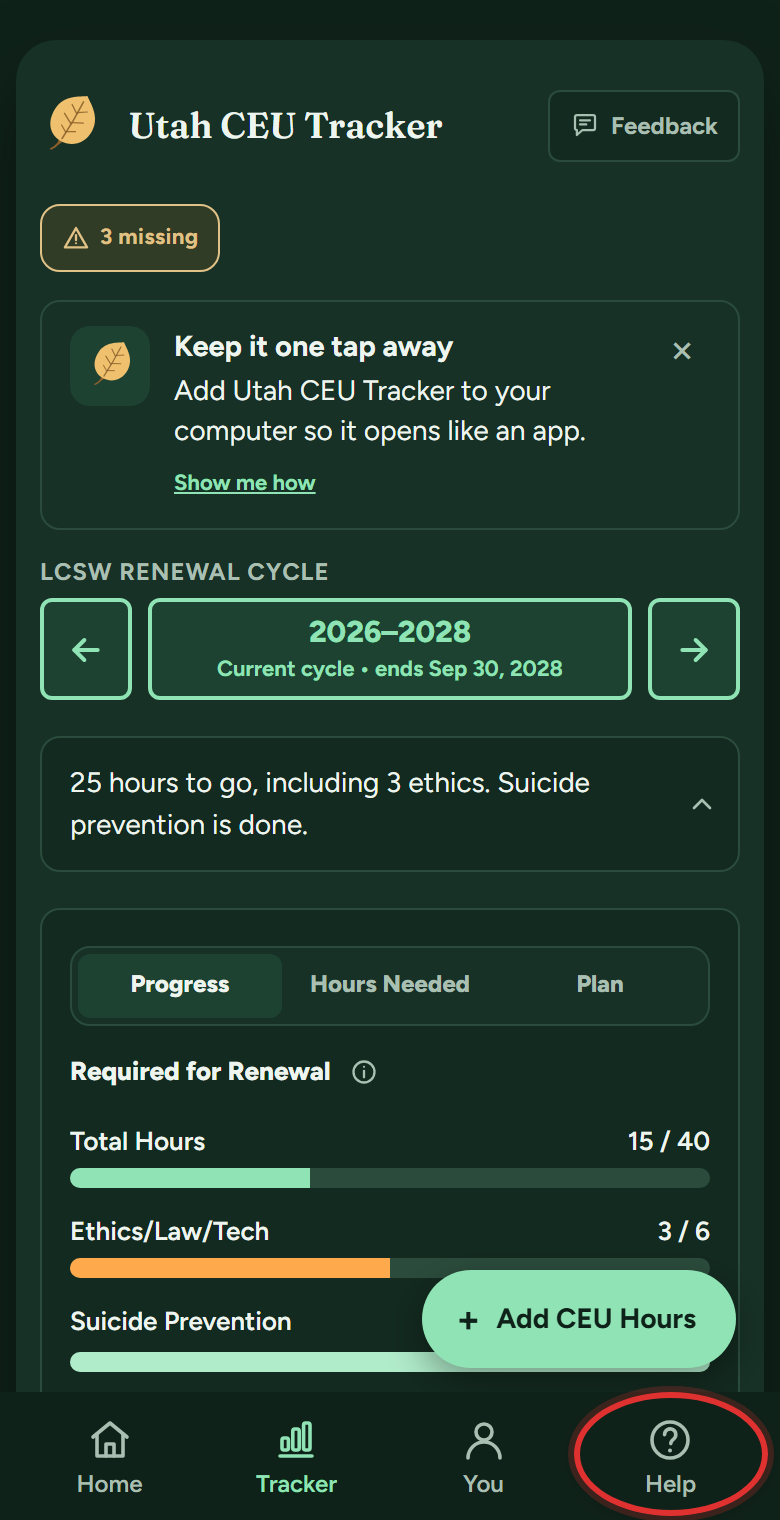
- Tap Still stuck? Message support at the very bottom.
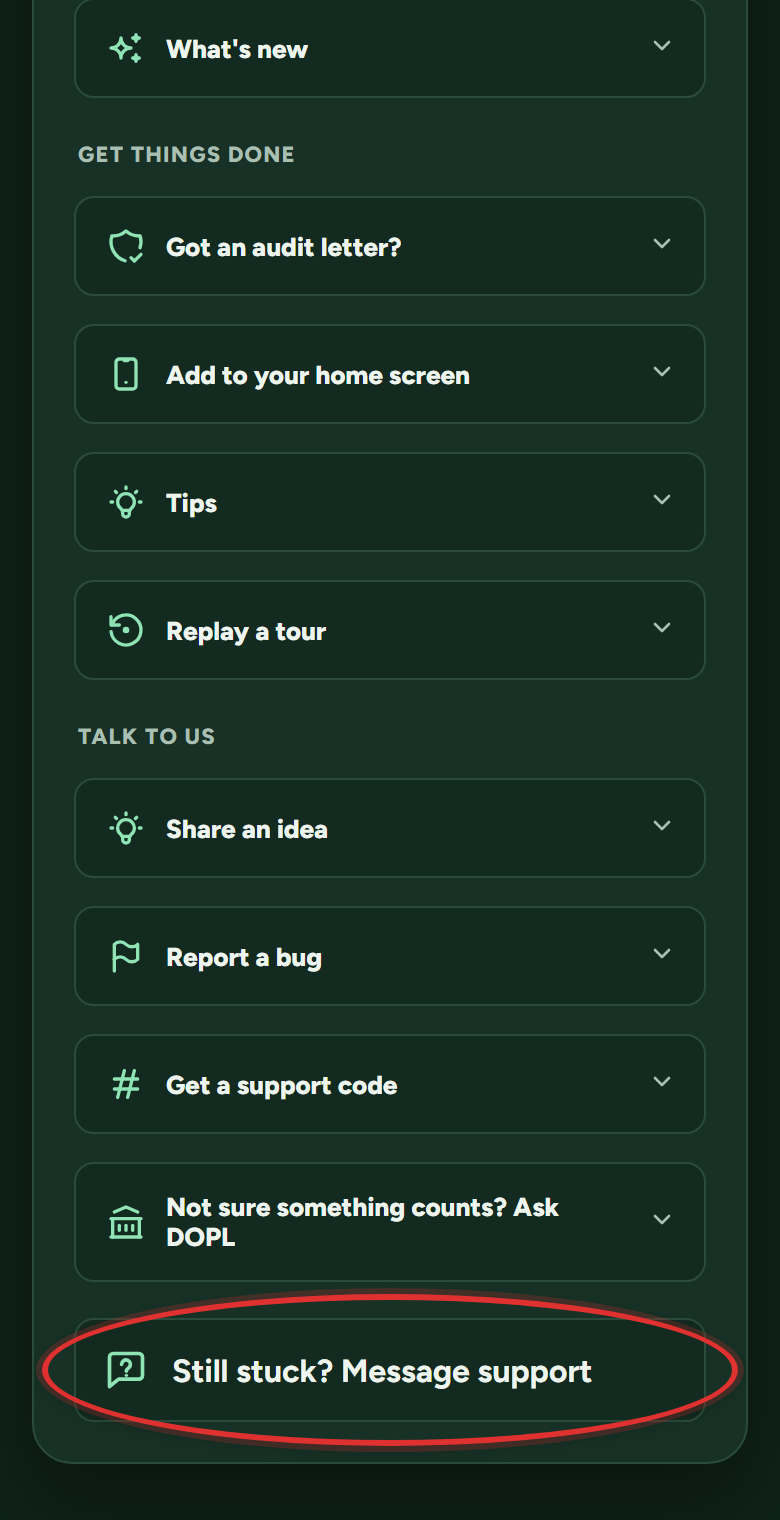
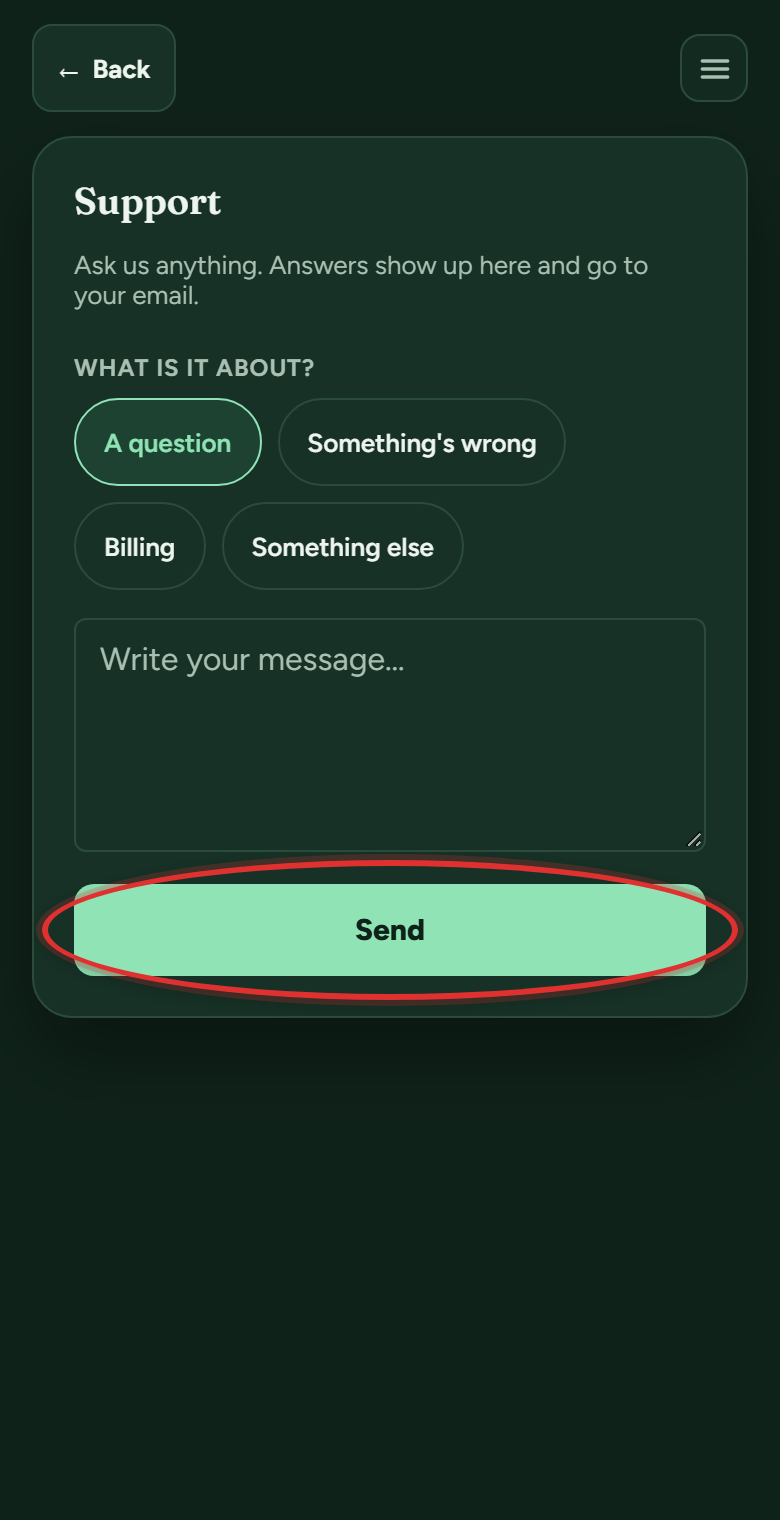
- Pick what it's about, write your message, and tap Send. Answers show up right there and in your email, and replying to the email works too.
 Plain email also reaches us: support@utahceutracker.com.
Still stuck? Message support
In the app: Help & Support (on a phone, the Help button in the bottom bar), then Message support. Answers arrive in the app and in your email. Or email support@utahceutracker.com.
Message support